User Journey
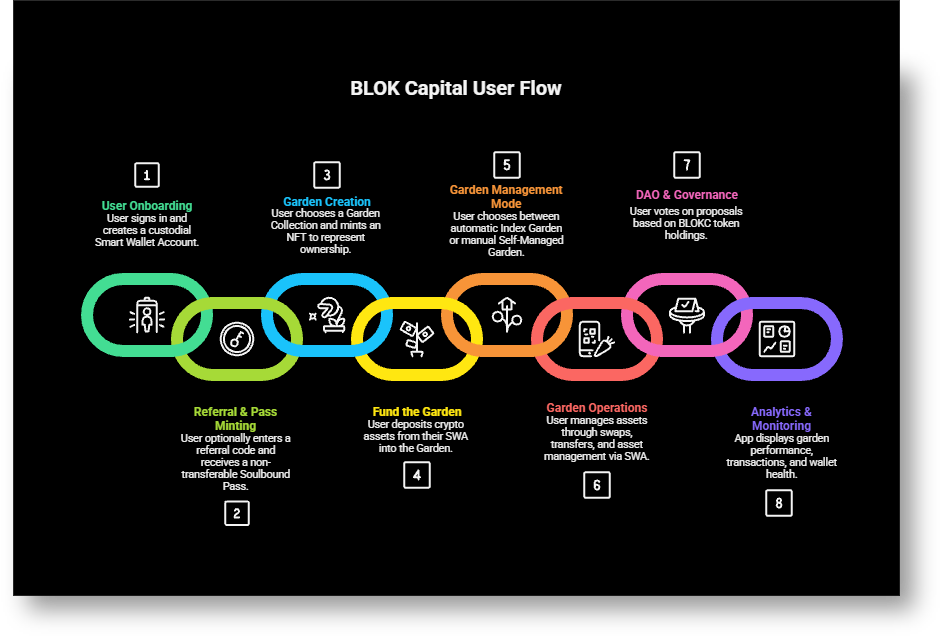
1. Sign in and create your smart wallet
- Sign in with Google.
- Create your smart wallet account (SWA). This is the account that will hold your assets and interact with the protocol.
- The SWA is monitored for health, balances, approvals, and activity. If needed, the system can show alerts and analytics for the SWA.
2. Referral code and pass minting
- You may enter an optional referral code during onboarding. Referral codes are provided by the protocol only (for example, “builder” referral for Builders).
- Based on your referral and role, the protocol mints a soulbound pass (SBT). Examples:
- Builder Pass
- Baddie Pass
- Angel Pass
- Passes are non-transferable and act as access tokens for creating certain kinds of gardens.
- Each pass is valid for one garden. If you have two passes (for example one Builder and one Baddie), you can create two gardens (one per pass).
3. Choose garden collection and create your garden
- When you create a garden, you choose which collection it belongs to. The protocol controls the available collections.
- To create a garden in a collection, you must hold the matching pass. The app guides you and shows which collections you can access based on your pass.
- If you hold multiple passes (for example, both Builder and Quant), you can create multiple gardens one for each pass you own.
4. Fund your garden
- Deposit funds into your garden from your SWA.
- Deposit happens first. Only after funding do you connect a strategy or choose manual mode.
Supported assets depend on network and protocol settings. The app shows supported assets and balances.
5. Pick how you want to manage the garden
You can manage the garden in one of these ways:
- Index garden (automatic)
- Connect to an Index strategy for auto-rebalancing.
- The garden adjusts holdings to match the index weights automatically.
- Swaps are routed through supported DEXs (for example, Uniswap V3), and WETH is used as the base where it helps routing.
- Self-managed garden (manual)
- You choose the assets and manage trades yourself.
- No automatic rebalancing.
Notes:
- Some gardens are specifically designed for Index strategies (auto rebalancing).
- Some gardens are normal self-managed gardens.
- The app will clearly label which type you are creating or using.
6. Connect the strategy or choose manual mode
- After you deposit funds, set how the garden operates.
- For Index gardens:
- Connect to the chosen Index.
- The garden reads target weights from the Index and rebalances automatically.
- For self-managed gardens:
- Select “Self-managed” (manual mode).
- You decide the assets and place trades yourself.
- There is no automatic rebalancing.
Important:
- Deposit funds first, then either connect an Index or choose Self-managed mode.
- Only Index gardens auto rebalance. Self-managed gardens do not.
7. DAO and voting
- There is a DAO tab where voting happens.
- Voting power is based on the amount of BLOKC you hold.
- Use the DAO tab to join votes, view proposals, and see results.
8. Analytics
- The app shows analytics for your garden and your account:
- Portfolio value and P&L
- Asset allocation and rebalancing history
- Swaps and fees
- Risk and approvals
- SWA analytics are also shown so you can track the health and activity of your smart wallet.